
FastAPI Alembic Migrations with PostgreSQL, SQLModel, and Docker
When building a FastAPI project with PostgreSQL, you need a reliable way to manage your database schema over time. As your application evolves, simple table creation is not enough. You need a way to safely apply, track, and roll back changes.
Alembic provides a structured, version-controlled approach to database migrations. In this guide, we’ll walk through how to set up Alembic with FastAPI, SQLModel, and PostgreSQL, including common issues you’ll run into when working with Docker.
FastAPI Alembic Migrations: Quick Start
If you’re looking for the high-level workflow, here’s what using Alembic with FastAPI looks like:
- Install Alembic
- Initialize migrations
- Configure env.py
- Run
alembic revision --autogenerate - Apply with
alembic upgrade head
What Is Alembic and Why Use It with FastAPI?
SQLModel (and SQLAlchemy under the hood) can auto-create tables on startup with SQLModel.metadata.create_all(engine). It’s convenient early on, but it has a serious limitation: it only creates tables, it never modifies them. The moment you need to add a column, rename a field, or add an index, you’re on your own.
Alembic solves this by giving you versioned migration files that describe every change to your schema. It’s the standard approach for any project that expects to evolve its data model over time.
This becomes especially important when building scalable API platforms and distributed systems.
What Is Alembic?
Alembic is a database migration tool for SQLAlchemy that allows developers to version-control schema changes over time. In FastAPI projects using SQLModel and PostgreSQL, Alembic provides a structured way to safely evolve your database as your application grows.
Why FastAPI Projects Need Database Migrations
As FastAPI applications grow, database schemas need to evolve. Migration tools like Alembic allow teams to safely apply changes without breaking existing data.
Limitations of SQLModel.metadata.create_all()
The create_all() method only handles initial table creation. It does not support schema updates, making it unsuitable for managing real-world database changes in development or production environments.
FastAPI Alembic Setup with PostgreSQL and SQLModel
Project Stack Overview
A quick overview of the stack before we get into migrations:
- FastAPI + SQLModel for the API and ORM layer
- PostgreSQL as the database
- Docker Compose for local development with a
dbservice, theapp, and Adminer for inspecting the database visually
The project structure looks like this:
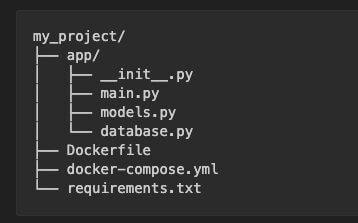
Both migrations/ and alembic.ini will be generated later when we run alembic init migrations.
Base Project Structure
Here’s the code for each file:
1. requirements.txt
# requirements.txt
fastapi>=0.111.0
uvicorn[standard]>=0.29.0
sqlmodel>=0.0.19
psycopg2-binary>=2.9.9
alembic>=1.13.0
2. Database Model
# app/models.py
from sqlmodel import SQLModel, Field
from typing import Optional

class StudentBase(SQLModel):
    first_name: str
    last_name: str
    major: str

class Student(StudentBase, table=True):
    id: Optional[int] = Field(default=None, primary_key=True)
3. Database Connection
# app/database.py
import os
from sqlmodel import SQLModel, create_engine, Session

def get_database_url() -> str:
    db_user = os.getenv("DB_USER", "user1")
    db_password = os.getenv("DB_PASSWORD", "password1")
    db_host = os.getenv("DB_LOCAL", "db")
    db_port = os.getenv("DB_PORT", "5432")
    db_name = os.getenv("DB_NAME", "database1")
    return f"postgresql://{db_user}:{db_password}@{db_host}:{db_port}/{db_name}"

DATABASE_URL = get_database_url()

engine = create_engine(DATABASE_URL, echo=True)

def get_session():
    with Session(engine) as session:
        yield session
4. Fast API App
# app/main.py
from fastapi import FastAPI, Depends
from sqlmodel import Session, select
from app.database import get_session
from app.models import Student

app = FastAPI(title="Students API")

@app.get("/students", response_model=list[Student])
def get_students(session: Session = Depends(get_session)):
    students = session.exec(select(Student)).all()
    return students
5. Dockerfile
# Dockerfile
FROM python:3.12-slim

WORKDIR /code

COPY requirements.txt .
RUN pip install --no-cache-dir -r requirements.txt

COPY . .

CMD ["uvicorn", "app.main:app", "--reload", "--host", "0.0.0.0", "--port", "8080"]
6. docker-compose.yml
# docker-compose.yml
services:
  app:
    build:
      dockerfile: Dockerfile
    command: ["uvicorn", "app.main:app", "--reload", "--host", "0.0.0.0", "--port", "8080"]
    depends_on:
      - db
    ports:
      - "8089:8080"
    environment:
      DB_LOCAL: db
      DB_USER: user1
      DB_PASSWORD: password1
      DB_NAME: database1

  db:
    image: postgres
    restart: always
    environment:
      POSTGRES_DB: database1
      POSTGRES_USER: user1
      POSTGRES_PASSWORD: password1
    ports:
      - "5439:5432"

  adminer:
    image: adminer
    restart: always
    ports:
      - "8091:8080"
To spin everything up:
docker compose up --build
Installing Alembic in FastAPI
Add it to your requirements.txt:
alembic=1.13.0
Initializing Alembic in a FastAPI Project
Run this once from your project root:
alembic init migrations
This generates the following structure:
alembic.ini— the main config filemigrations/env.py— where Alembic connects to your database and reads your modelsmigrations/script.py.mako— the template used when generating new migration filesmigrations/versions/— a folder where your migration files will live
The first thing to do after init is open alembic.ini and set:
script_location = migrations
Configuring alembic.ini and env.py
The migrations/env.py file is the heart of your Alembic setup. You need to wire it up to your database URL and your SQLModel metadata so Alembic knows what your schema looks like.
The two key changes are importing your models and pointing the URL at your database:
 from app.models import Student # noqa: F401 from app.database import DATABASE_URL from sqlmodel import SQLModel
config.set_main_option("sqlalchemy.url", DATABASE_URL) target_metadata = SQLModel.metadata
Importing your models is important — even though you don’t use them directly, importing them registers their table definitions with SQLModel.metadata, which is what Alembic uses to detect schema changes.
How to Run Alembic Migrations in FastAPI
Before running migrations, you need to ensure Alembic can correctly connect to your database.
Since the database runs in Docker, you need to tell Alembic to connect to localhost on the exposed port instead of the internal Docker hostname. Export these env vars before running any Alembic commands:
export DB_LOCAL=localhost
export DB_PORT=5439
export DB_USER=user1
export DB_PASSWORD=password1
export DB_NAME=database1
These are read inside get_database_url() in app/database.py, which builds the DATABASE_URL connection string that Alembic picks up via env.py. Inside Docker, DB_LOCAL defaults to db (the Compose service name) — but locally, Docker’s internal hostname isn’t reachable, so you override it to localhost and point the port to 5439, which is what you’ve exposed on your machine.
Generating Your First Migration
With env.py configured, generate your first migration:
alembic revision --autogenerate -m "create student table"
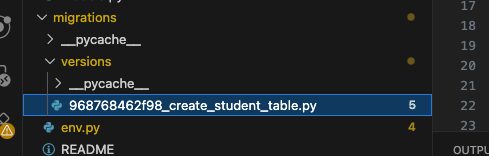
Alembic connects to the database, compares it against your SQLModel metadata, and generates a new migration file in migrations/versions/. The filename is prefixed with a unique revision ID, so it will look something like:
migrations/versions/968768462f98_create_student_table.py
Open the generated file and you’ll see it looks something like this:
def upgrade() -> None: op.create_table( "student", sa.Column("id", sa.Integer(), nullable=False), sa.Column("first_name", sa.String(), nullable=False), sa.Column("last_name", sa.String(), nullable=False), sa.Column("major", sa.String(), nullable=False), sa.PrimaryKeyConstraint("id"), )
def downgrade() -> None: op.drop_table("student")
upgrade()runs when you apply the migration — in this case it creates thestudenttable with all four columns.downgrade()runs when you roll back — it drops the table entirely.
Every migration Alembic generates follows this same pattern, giving you a full forward and backward history of your schema.
Rolling Back Alembic Migrations
To undo the last migration, run:
alembic downgrade -1
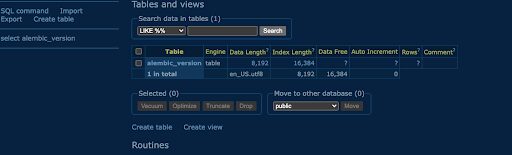
The -1 means roll back one step. Alembic runs the downgrade() function in your migration file, which in this case drops the student table. If you check Adminer again you’ll see only the alembic_version table remains — Alembic keeps that around to track that the database is now at a state before any migrations were applied.
Seeding Data with Alembic Migrations
Alembic isn’t just for schema changes – you can also use it to seed initial data. The key difference is that for a data migration you use alembic revision without --autogenerate, since there’s no schema change for Alembic to detect:
alembic revision -m "seed student data"
This creates a blank migration file. Unlike the previous migration, we’re not using op.create_table here. Instead we use op.execute to run raw SQL inserts.
Open the generated file and fill it in like this:
"""seed student data
Revision ID: e5999a5c94e9 Revises: 968768462f98 Create Date: 2026-04-28 22:35:51.927195
""" from typing import Sequence, Union
from alembic import op import sqlalchemy as sa import sqlmodel
revision: str = 'e5999a5c94e9' down_revision: Union[str, Sequence[str], None] = '968768462f98' branch_labels: Union[str, Sequence[str], None] = None depends_on: Union[str, Sequence[str], None] = None
def upgrade() -> None: op.execute(""" INSERT INTO student (first_name, last_name, major) VALUES ('Alice', 'Johnson', 'Computer Science'), ('Bob', 'Smith', 'Mathematics'), ('Carol', 'Williams', 'Physics'), ('David', 'Brown', 'Computer Science'), ('Eva', 'Davis', 'Biology') """)
def downgrade() -> None: op.execute(""" DELETE FROM student WHERE first_name IN ('Alice', 'Bob', 'Carol', 'David', 'Eva') """)
Notice the down_revision points to the previous migration’s revision ID — this is how Alembic knows the order to apply and roll back migrations. The chain of down_revision values forms a linked list that Alembic walks when running upgrade head or downgrade base.
Apply it:
alembic upgrade head
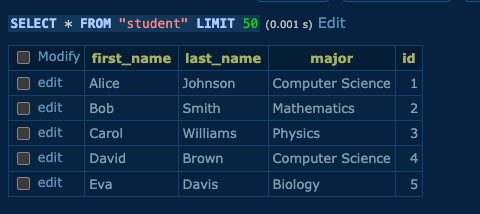
After running this, your student table should have 5 rows — one for each insert. The id column is auto-incremented by PostgreSQL, so each student gets assigned an id starting from 1. The data should look like this:
Also, you can check the endpoint:
curl http://localhost:8089/students
Using Alembic with Docker in FastAPI Projects
Migrations Don’t Survive a Fresh Database
One thing worth knowing when working locally — if you run docker compose down, Docker tears down the containers including the database. When you bring everything back up with docker compose up --build, Postgres starts completely fresh with an empty database. Your migration files still exist on disk, but they haven’t been applied to the new database yet.
This means hitting an endpoint like GET /students right after a rebuild will fail with an error like:
relation "student" does not exist
The fix is simple — just re-run your migrations after bringing the containers back up:
export DB_LOCAL=localhost export DB_PORT=5439 export DB_USER=user1 export DB_PASSWORD=password1 export DB_NAME=database1
alembic upgrade head
This applies all migrations in order — creating the table and seeding the data — and gets the database back to the expected state. This is one of the core benefits of Alembic: no matter how many times you tear down and recreate your database, you can always replay the full history with a single command.
This type of repeatable environment setup is a core part of modern cloud-native development practices.
Common Alembic + FastAPI Issues (and Fixes)
SQLModel AutoString Import Error
If you try to run alembic upgrade head at this point you’ll hit an error like:
sa.Column('first_name', sqlmodel.sql.sqltypes.AutoString(), nullable=False), ^^^^^^^^ NameError: name 'sqlmodel' is not defined
This happens because SQLModel uses its own AutoString type (a thin wrapper around SQLAlchemy’s String) for str fields. Alembic faithfully records this type in the generated migration file, but doesn’t automatically add import sqlmodel at the top — it’s a known rough edge with using SQLModel and Alembic together.
The fix is to update migrations/script.py.mako — the template Alembic uses when generating migration files. Find this line:
import sqlalchemy as sa
And add import sqlmodel directly below it:
import sqlalchemy as sa import sqlmodel
From this point on, every new migration file will include the import automatically. For the migration you already generated, just open it and add import sqlmodel manually at the top.
Apply the migration:
alembic upgrade head
head means apply all pending migrations up to the latest. You can verify it worked by checking the current version:
alembic current
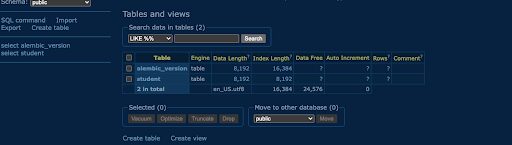
If you open Adminer at http://localhost:8091 you’ll notice two tables have been created in the database:
student— the table defined in your model, withid,first_name,last_name, andmajorcolumnsalembic_version— a table Alembic manages itself to track which migrations have been applied. It stores the current revision ID so Alembic always knows what state the database is in
Migrations Not Applying After Docker Rebuild
When using Docker, the database resets after rebuild, meaning previously applied migrations are lost. You must re-run migrations using alembic upgrade head.
Essential Alembic Commands for FastAPI Developers
We used upgrade head, downgrade -1, and revision --autogenerate throughout this post. Here’s a rundown of important Alembic commands you’ll reach for regularly.
alembic upgrade head
alembic upgrade head
Applies all pending migrations up to the latest version.
alembic downgrade -1 (Rollback One Migration)
alembic downgrade -1
Rolls back the most recent migration.
alembic downgrade base
alembic downgrade base
Rolls back every migration all the way to the beginning with a completely empty database. Useful when you want a clean slate locally without tearing down your Docker containers. The opposite of upgrade head.
alembic history
alembic history
Prints the full list of migrations in order, oldest to newest. Each entry shows the revision ID, the message you gave it, and which one is currently applied. Handy when you want to see the full picture of your schema’s evolution or find a specific revision ID to target.
alembic current
alembic current
Shows which revision the database is currently at. If you’re not sure whether your migrations have been applied — for instance after a fresh docker compose up — this is the quickest way to check. If it returns nothing, no migrations have been run yet.
alembic revision -m “description”
alembic revision -m "description"
Creates a blank migration file with no auto-detected changes. We used this for the seed data migration. Any time you need to write custom SQL — inserting data, backfilling a column, running a one-off transformation — reach for this instead of --autogenerate.
alembic upgrade
alembic upgrade
Applies migrations up to a specific revision rather than all the way to head. Useful if you want to partially apply a migration chain or test a specific version of your schema.
alembic downgrade
alembic downgrade e5999a5c94e9
Same idea in reverse; it rolls back to a specific revision ID. If you have three migrations and want to undo only the latest one (but stop there), target the second migration’s ID directly.
FastAPI Alembic Migrations Best Practices
In production systems, database migrations are not just a development concern, they are a critical part of your deployment and release strategy.
Alembic gives you something that SQLModel.metadata.create_all() simply can’t, with a versioned, reproducible history of every change to your database schema. By the end of this post we’ve covered the full setup from scratch: initializing Alembic, wiring up env.py to your SQLModel metadata, generating and applying your first migration, seeding data with a second migration, and understanding how to replay everything after a fresh database.
A few things to keep in mind as you continue:
- Always run
alembic upgrade headafter a fresh database — migrations don’t apply themselves - Update
script.py.makoto includeimport sqlmodelso generated files don’t require manual fixes - Use
alembic revision(without--autogenerate) for data migrations and--autogeneratefor schema changes - The
down_revisionchain is what keeps your migrations ordered — never change it manually
The migration files living in your migrations/versions/ folder are part of your codebase. Commit them to version control alongside your models, and anyone on your team can get to the same database state with a single command.
If you’re comparing backend frameworks, you may also want to read our guide on Express vs FastAPI to better understand where FastAPI fits in modern architectures.
FastAPI Alembic Migrations: Key Takeaways
- Alembic enables version-controlled schema changes
- Migrations must be re-run after database resets
- Separate schema and data migrations for clarity
Need Help Scaling FastAPI or Database Migrations?
Keyhole Software helps teams implement production-ready Python architectures, including:
- Database migration strategies
- CI/CD integration
- Cloud-native platform engineering
Contact us to learn more.
More From James Fielder
About Keyhole Software
Expert team of software developer consultants solving complex software challenges for U.S. clients.
Share This Post
Join The Thousands Of Devs Who Subscribe

Discuss This Article
Subscribe
Login
0 Comments
Oldest