

5 VS Code Extensions To Rocket Productivity
December 13, 2022

We all want to write cleaner and faster code. Better code. However, at the same time, we all learn at our own pace, and if you’re like me, discovering new strategies and methods to be more productive can take some time to adapt to and fully adopt. The quickest way I know to improve the coding process is to use effective tools to assist us. Even improving by just 1% is still an improvement!
I’ve assembled a quick unordered list of five great helpers that help me with organization and time and reduce my stress level as a developer. This list will be specific to extensions for VS Code (for the most part).
Let’s start with a quick, easy extension for VS Code called Peacock!
Peacock
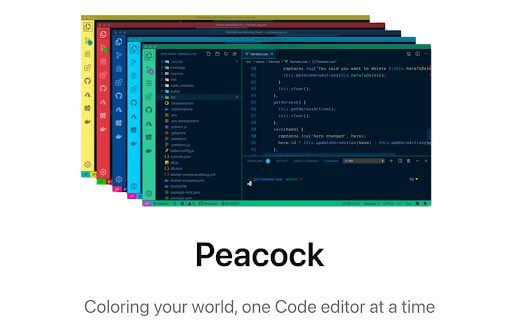
This is an excellent VS Code extension for the developer with multiple open projects simultaneously. Peacock allows you to quickly change the color of your workspace to distinguish which project is which.
This is my helper to reduce stress! I sometimes will have a backend project, front end project, and maybe a third project I have open just for references on how I tackled a problem in the past. After scanning through the code and flipping through open tabs, you can easily lose your place and not realize what project you have in focus.
Install this extension by opening the Extensions sidebar, searching for ‘Peacock,’ and then clicking install. A reload might be required, but after that, you are set. I want to point out that all VS Code extensions mentioned in this blog will be installed like this. Once installed, press the F1 button, search for ‘Peacock’ in your command palette, and you can quickly select from multiple options to change your current editor’s color.
Don’t worry. This doesn’t completely change the VS theme. By default, it changes the editor’s outline (menu bar, sidebar, status bar), but you can customize the behavior in the settings to tailor this to your liking. This is an efficient way to know precisely what window to jump to when swiftly navigating projects. Pick some of the preformatted colors Peacock offers or create custom colors and add them to your favorites list to easily swap ideal colors.
Even better, you can close your project, and when you reopen it the next time, the color will still be automatically applied. Or you can remove it when you’re done by searching for the option ‘Peacock Remove.’
How helpful to think that I can differentiate specific projects I’m working on with color; whenever I open it, it will always be that particular color. Personally, I go blue for the backend projects, green for the projects I have a green light to make all the edits I want, and red for don’t touch, just read.
Flutter Color

Rolling along with color helpers, another useful VS Code extension when working with colors in CSS is called Flutter Color, one of my most valuable tools. When you have this extension installed, anywhere a color value is present, Flutter Color will display a filled colored box with your color value.
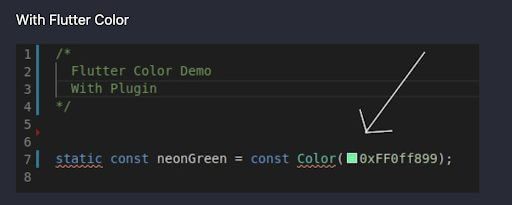
Plus, this extension also gives you the ability to hover over the box and edit the color by providing you with a color picker. Instead of needing to browse online for a color picker, this offers one within your code.
Quokka

I have to say, this is an excellent extension for VS code. Quokka provides rapid JavaScript/Typescript prototyping. Create a new ‘Quokka’ file in VS from the command palette, start coding, and see the runtime values immediately. You don’t even have to build and run your project. Values are displayed instantly beside the code you are writing.
This is a great tool for testing and seeing the live execution and results. If there are any errors generated, those are displayed as well. Testing my code in Quokka is one of my first go-to’s to ensure my logic makes sense! You can quickly create a mock object and start crafting your code with constant checks to validate your coding cred.
I never code without Quokka. They provide a free version (which I use) and a ‘Pro’ paid version that adds extra functionality like live value displays, live comments, live performance testing, and more.
Git Graph

Here’s a tool for those of you who have trouble remembering all the git commands available and don’t get much from the help menu in the terminal. Git Graph is also right for you if you like eye-catching graphics of colorful Git branches swerving in and out of the main branch lane. Git Graph is an incredible UI graph of your repository that allows you to perform Git actions directly from the graph.
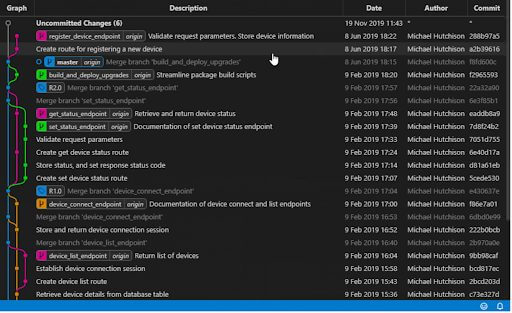
Easily view commit details and changes just by clicking on a commit. Color-coated branches are easy to follow and clearly display the current state of branches (local and remote), uncommitted changes, and more. Git can be hard to follow, especially in a big project with many developers’ hands in the code, but this extension simplifies that.
Notion

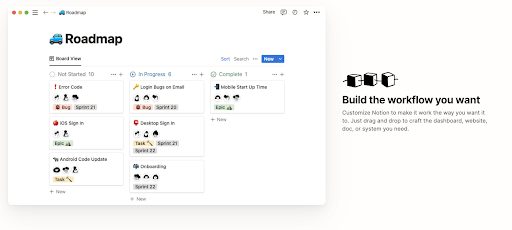
Stepping outside of VS Code extensions, here is a tool that helps anyone organize their professional or personal life. Notion (as quoted on their website) is “more than a doc or a table.” In my opinion, it’s the best note-taking app.
It’s easy to create regular fashion notes in this app, but the seamless way to craft helpful views and tools within your notes is special. Create charts, tables, dashboards, lists, schedules, and more. I can go on and name plenty of great uses for this app with all its third-party support from companies like Trello, Jira, Slack, and more. Notion is accessible through your browser of choice, as a mobile app for Android and iOS, and as a desktop app for Mac and Windows.
There is a wonderful community of Notion users that provides templates to share, which allows you to see how others are using Notion, try their design out, and tweak and tailor it to your needs. It’s a great starting point for new Notion-ers to get a feel for all the possibilities available.
Wrapping Up
And just like that, we’ve covered 5 of my go-to tools! Hopefully, you now have a better idea of what these extensions can do and are thinking of ways they might make your life easier. I barely scratched the surface of what these tools can do, so check out their websites and marketplace overviews in VS Code to dive deeper.
These tools aren’t technically necessary for the developer field, but take it from me, they are crucial for improving our process and relieving some workloads and tasks. Obviously, this isn’t a complete list to get you set up, but hopefully, it provides a little insight into some means to add to your developer Swiss army knife of tools.
If you liked this post, I hope you’ll consider subscribing to the Keyhole Dev Blog for weekly updates! Thanks for reading.
More From Ruben Hernandez
About Keyhole Software
Expert team of software developer consultants solving complex software challenges for U.S. clients.
Share This Post
Related Posts
Join The Thousands Of Devs Who Subscribe


Discuss This Article
Subscribe
Login
0 Comments
Oldest