
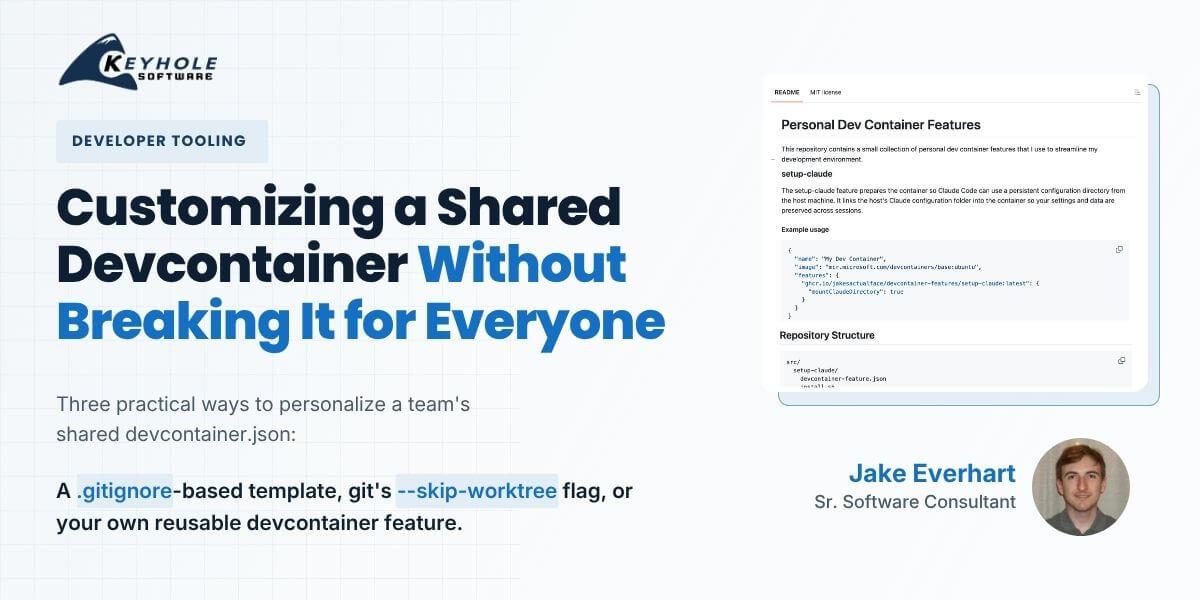
Customizing Devcontainers Without Affecting Your Team
There’s no single “correct” way to customize a devcontainer, just like there’s no one right way to use most tools in software development. Devcontainers can be great for solo projects, to yield an isolated development workspace with no risks of polluting (or being polluted by) the external environment. They can also give teams a consistent, baseline environment for bootstrapping engineers, with integrations like GitHub Codespaces exposing that environment in a variety of ways. But the gap between those workflows is large, and managing it sometimes requires weighing a team’s needs vs. individual preferences.
It’s a balancing act, and getting it wrong can make your containers brittle, difficult to maintain, and cause enough overall frustration to outshine the benefits.
Yet there are options available for a more-granular approach. We don’t have to decide just between bare-minimum or include-everything – we can curate containers that are focused on the core tools used across the entire team, while still providing room for per-user expansions.
Today, we’ll explore a few approaches for customizing a shared devcontainer setup across different team scenarios, without having to abandon shared devcontainers altogether.
Why Personalizing A Shared Devcontainer Is Hard
A devcontainer packages a project’s tooling and dependencies into a container definition (devcontainer.json) that tools like VS Code and GitHub Codespaces can spin up automatically, letting a new teammate get a fully configured environment without installing anything by hand. If you’re newer to the concept, our earlier look at VS Code’s development containers is a good primer; here, we’re focused on a narrower problem.
Let’s first explain why this is an issue. Consider a team with only two members: User A and User B. Both of these users are working on the same project, and they decide to add a devcontainer to the repository to manage its dev dependencies.
So far, so good.
Now, imagine that User A wants to update their environment in one of the following ways, without impacting User B:
- Installing a new CLI tool
- Installing a new vscode extension
- Adding a file mount
Scenarios 1 and 2 are still possible to be done manually by performing the action inside the running container environment, with the caveat that they’ll have to be repeated each time the container is rebuilt. This means that each time the repository’s devcontainer.json file is changed (or more generally, any files used to construct the Docker image), User A‘s additional changes will be wiped clean in order to build a fresh container with the updated configuration.
Scenario 3 is a different story altogether. For the uninitiated, devcontainers provide a mechanism to mount a directory from the host machine into the containerized environment. This is often desirable for cases where data needs to be shared across multiple repositories, or when a user needs to expose some local configuration files within their devcontainer environment.
Since this mounting process happens at container creation, there is no option for someone to manually add a mount after-the-fact. The devcontainer standard also has no support for “optional” file mounts at time of writing (despite the feature having been proposed multiple times), nor is there an obvious way to “merge” multiple container specification files together through a hierarchy.
This means that if User A needs to mount a directory within their project’s devcontainer setup, they can either define it within the same devcontainer.json file that User B is also using, or they’ll need to get…creative.
So, let’s get creative.
Option 1: Don’t Commit The devcontainer.json File Directly
Let’s get the simplest option out of the way first.
Yes, the root cause of this problem is the inflexibility of a single devcontainer.json file serving as a source of truth. If that restriction were relaxed, then the files used by Users A and B could diverge in whatever way they wish.
Remember though, many teams maintain this configuration within their repositories as a way to provide a consistent starting point for developers. Fully removing the canonical version from the repository puts that at risk. You can achieve a compromise by maintaining a documentation-only file (ex: devcontainer.example.json) in the repository to be used as a template and .gitignore-ing the true devcontainer.json files, excluding them from being tracked and avoiding conflicts as teammates deviate from the starting example.
Do know that you’ll need to introduce either additional tooling or manual maintenance effort to stay up-to-date as that template accrues changes over time.
Maybe this works for your case, and maybe it doesn’t. Let’s keep looking.
Option 2: Use Git’s –skip-worktree flag
The git update-index command supports a --skip-worktree flag that might help us out. Assume User A runs the following command after the devcontainer.json file has been committed into the repository:
git update-index --skip-worktree .devcontainer/devcontainer.json
This sets the “skip worktree” bit for that object path within the repository, informing git to ignore local modifications to the file “when reasonably possible”. Effectively, it allows the file to still be tracked within the repository for other users, while also giving User A the ability to update their local copy of the file without risk of accidentally committing the changes back for others. It even has the added benefit of informing User A (through a merge conflict) when there have been new updates to the tracked contents of devcontainer.json as time goes on.
While this option is a bit on the clunky side, it does provide a lot of freedom with relatively little complexity. The main downside is that User A becomes responsible for navigating (and remembering how to navigate) the git commands necessary to bring them back into alignment with the team as-needed. If they’re comfortable doing so, then this is an option worth considering.
In case you’re wanting to adopt this workflow, here’s the reversal command which re-enables local worktree tracking for the file:
git update-index --no-skip-worktree .devcontainer/devcontainer.json
Also know that the following command will list all files in the repository, prefixed with S for any files where the skip worktree bit is currently set (whereas normal files are prefixed with H):
git ls-files -v
Example output:
S .devcontainer/devcontainer.json
Since delving into the inner mechanics of git may not appeal to every team, let’s explore another option.
Option 3: Build Custom Devcontainer Features
While it’s true that there’s no purpose-built support within vscode for merging multiple devcontainer.json files together, there is a user setting which can enable default features. If your need is simply to always have a set of features available on each of your devcontainers, this option could be everything you need in order to bridge the gap. Just populate your personal list of default features, and vscode will automatically include them for you each time a container is built.
But as it turns out, this mechanism also extends to file mounts. Docker still requires that these mounts be configured at build time for the container, but since vscode resolves features during the build process, any mounts added by any features are present in the container environment. So if we know how to create our own features, we can effectively inject our own custom file mounts. And happily, creating a devcontainer feature is less intimidating than you might think!
As an experiment, I created my own custom feature to install the Claude CLI and provide an option to mount the ~/.claude directory for sharing my session history within my container environments. The following is a brief tutorial on how you could accomplish the same.
Creating a Custom Devcontainer Feature
Start by creating a new GitHub repository from the quickstart template. This repo is the equivalent of a “Hello, World!” feature implementation, with the addition of well-commented tests and CI actions. It also includes its own devcontainer to assist with your feature development.
Then, update the template features as you see fit. You can bundle additional features as dependencies, add arbitrary shell commands into the lifecycle, and even declare your own options for users to provide when they consume your feature. The examples within the template serve as a quick reference for simpler things, and the features specification is a good place to start for anything more complex. Feel free to also take from my own devcontainer-features experiment.
Once you’re happy with your feature’s implementation, it’s time to expose it. You could choose to upload it to the public index, but since we’re discussing our own niche and custom use-cases in this post, I would recommend using your GitHub repository as the distribution mechanism for now. For this, we simply need to grant GitHub Actions the ability to create pull requests and run the release.yml workflow that’s included in the template. This will create a private package under your user within the GitHub Container Registry.
From there, you can choose to make the package publicly accessible to anyone who has the link, or keep it private and require your GitHub credentials for usage. And then, finally, you can add a reference to your feature to the “always installed” list in your user settings.
Now, your own customizations will be automatically inserted into any devcontainers you create, all without having to update the devcontainer.json files themselves.
Which Option Should You Choose?
| Option | Effort to set up | Visible to teammates? | Best for |
|---|---|---|---|
| .gitignore + example file | Low | No, only a template is tracked | Teams fine with a manual, lightly-maintained template |
| Git –skip-worktree | Low to medium | Yes, file stays tracked but edits stay local | Anyone comfortable with git internals who wants a conflict warning when the shared file changes |
| Custom devcontainer feature | Higher up front | No, fully invisible and reusable across repos | Developers who want the same personal tools/mounts applied automatically across many projects |
If you only need this once, --skip-worktree is the fastest path. If you find yourself wanting the same personal tools or mounts on every project you touch, building your own devcontainer feature pays for itself quickly.
Customizing Devcontainers Doesn’t Have One Right Answer
To reiterate an earlier point, there is no “correct” way to customize a devcontainer, only the option that fits how your team already works.
Whether that’s a .gitignore-based template, git’s --skip-worktree flag, or a custom devcontainer feature, each approach solves the same underlying problem: letting individual developers personalize their setup without forking the devcontainer.json file everyone else depends on. There’s even a CLI available, in an attempt to expose the standard outside of the vscode ecosystem that it’s tightly coupled with. If a team chooses to use devcontainers, they should do so in whatever way works best for them, and knowing these options going in makes that decision a lot easier.
Devcontainer tooling will likely continue to improve over time. Maybe we’ll see native support for optional or per-user mounts that streamline these scenarios further, making the decisions easier and the workflows more obvious. Maybe someday, this problem of standardizing and personalizing a shared devcontainer will be a thing of the past.
Until then, we’ll keep finding ways to share a container without losing our own space in it.
More From Jake Everhart
About Keyhole Software
Expert team of software developer consultants solving complex software challenges for U.S. clients.
Share This Post
Join The Thousands Of Devs Who Subscribe

Discuss This Article
Subscribe
Login
0 Comments
Oldest