
AI-Generated Unit Tests: A Practical Workflow with Vitest and React
AI-generated unit testing is quickly becoming a core part of modern software development. Instead of writing tests from scratch, developers can now use tools like ChatGPT, Claude, or GitHub Copilot to generate unit tests directly from source code. This post walks through a practical workflow for generating unit tests using AI, with real examples built on a React and TypeScript application using Vitest and React Testing Library. You’ll see how to scaffold tests, handle edge cases, and refine AI-generated output into production-ready test suites as part of broader AI-assisted development workflows.
Introduction
There is a new move in the developer’s playbook. It is deceptively simple: open an AI chat session, paste your source file, and ask for unit tests. No boilerplate hunting, documentation spelunking, or staring at a blank test file wondering where to begin. The AI reads your actual code, understands the contracts your functions and components expose, and generates a working test suite in seconds.
This post demonstrates this workflow against a real, publicly available repository on GitHub at https://github.com/mauget/directiional.
Who This Is For
This approach is especially useful for:
- Developers using React, TypeScript, and Vitest
- Teams looking to speed up test coverage
- Engineers adopting AI-assisted development workflows
- Organizations evaluating AI in software delivery pipelines
Let’s begin.
How to Generate Unit Tests with AI
Chiefly, an insight driving this workflow is that AI code generation is at its best when it has maximum context. Pasting the full source of each file into a fresh AI session, rather than describing the code in abstract terms, gives the model exactly what it needs to produce tests that match the real shape of your exports, your props, your event handlers, and your edge cases.
The results are not perfect first drafts, but they are far better starting points than anything you would write by hand from a blank file. This approach is especially valuable when modernizing legacy systems, where large codebases require consistent and scalable testing strategies.
Example Test Target Project
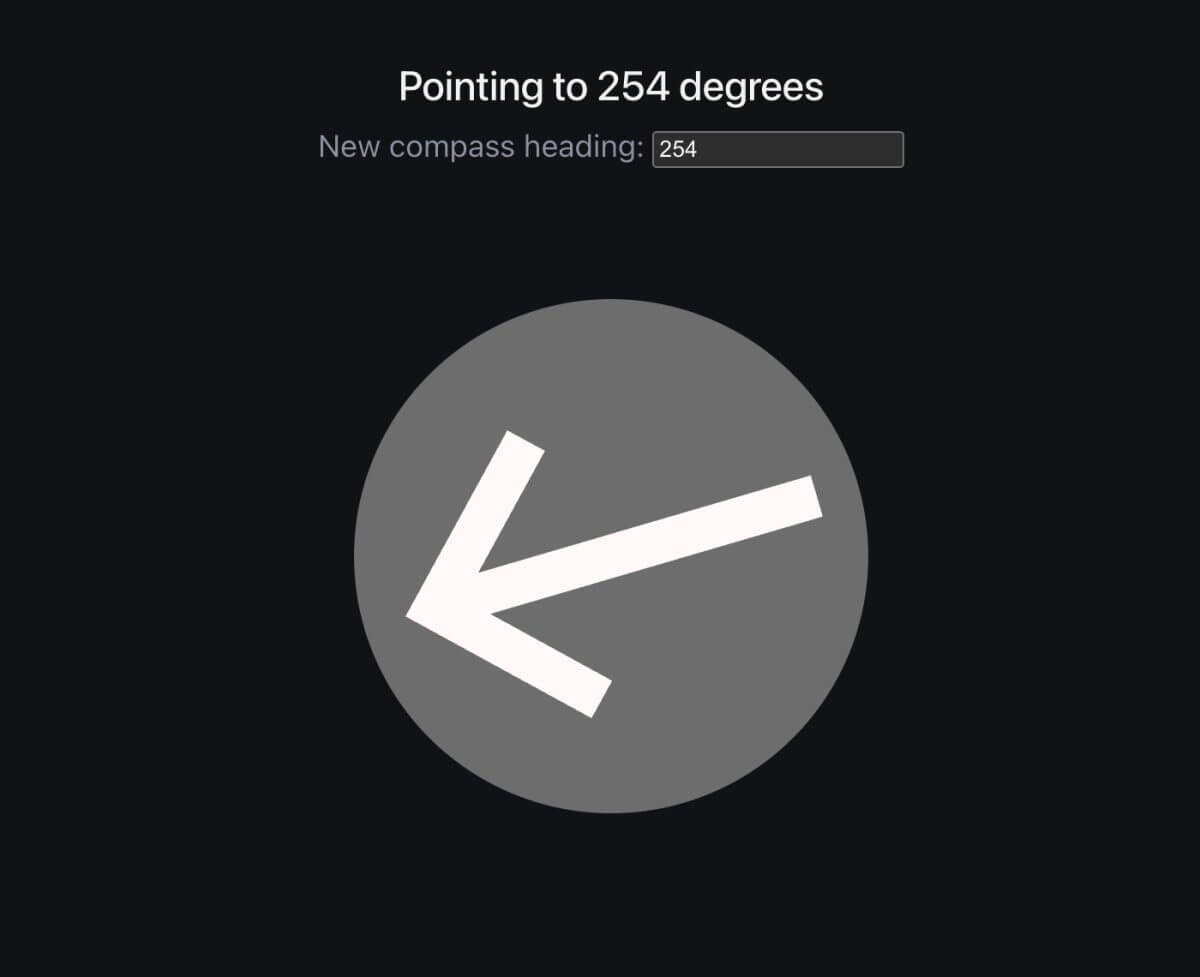
The project is a React 19 TypeScript workspace, built on Vite (pronounced “Veet”), containing a SimpleCompass component. It is an SVG compass dial whose needle can be repositioned by clicking the dial, dragged to any angle, double-clicked to reset to zero, or precisely controlled by typing a degree value into an input type="number" element. The test targets are three files:
App.tsxSimpleCompass.tsxradiansToDegrees.ts
The testing stack is “Vitest with React Testing Library” and @testing-library/user-event. I’ve wired them into the project’s Vite configuration.
Here’s the rendered SimpleCompass:
But first … a caveat.
Security Considerations When Using AI for Code
Before pasting source code into AI tools, confirm your organization’s policies. Some environments restrict sharing proprietary code with external AI systems. In enterprise settings, teams often use approved AI platforms or private model deployments within a broader enterprise AI architecture to ensure data security and compliance.
So, check that your organization is okay with your pasting their source into an AI, or be sure that you’re using an AI configuration that doesn’t inject user-input into its LLM. I once received a strong “don’t do that” on a Top-Secret defense contract when I pasted an innocuous component into ChatGPT. I will say that the pasted component received first-class all-paths 100% test coverage in one try.
With that understood, let’s continue…
AI Unit Testing Workflow (Step-by-Step)
Use any publicly available AI such as Claude, CoPilot, or ChatGPT to scaffold a unit test. We need no coding agents at this level.
The process for each file follows the same four steps.
- First, open a new AI chat session — a fresh context window avoids confusion between files.
- Second, paste the entire source file.
- Third, include a concise prompt that names the testing stack and specifies what you want covered.
- Fourth, paste the generated test file into your project, run
yarn test, and iterate with the AI on anything that fails or is missing.
AI-generated testing fits naturally into modern software delivery pipelines, where automation and rapid iteration are critical.
Here is a chat prompt template that works well across all three files:
“Here is the full source of [filename]. Please generate a complete Vitest + React Testing Library test file for it. Use @testing-library/user-event for interactions. Cover the happy path, edge cases, and any error states. Assume jsdom is configured as the test environment.”
Be specific
The more specific you are about edge cases you care about — the drag-to-angle interaction, the double-click reset, the degree clamping — the better the output. Add those specifics as bullet points after the base prompt. It’s okay to add more later as you iterate.
Let’s scaffold the simpler file’s test.
Example: Generating Unit Tests for Utility Functions
We start here because this file has the fastest feedback loop. Navigate to src/radiansToDegrees.ts in the directional repository, copy the full file contents, and paste it into an AI session with this prompt:
“Here is radiansToDegrees.ts. Generate a Vitest test file covering zero, positive, negative, full-circle, and quarter-circle inputs. Use toBeCloseTo for floating-point assertions.”
The AI will immediately produce something close to this:
import { describe, it, expect } from 'vitest';
import { radiansToDegrees } from './radiansToDegrees';

describe('radiansToDegrees', () => {
  it('converts 0 radians to 0 degrees', () => {
    expect(radiansToDegrees(0)).toBe(0);
  });
  it('converts π to 180 degrees', () => {
    expect(radiansToDegrees(Math.PI)).toBeCloseTo(180);
  });
  it('converts 2π to 360 degrees', () => {
    expect(radiansToDegrees(2 * Math.PI)).toBeCloseTo(360);
  });
  it('converts π/2 to 90 degrees', () => {
    expect(radiansToDegrees(Math.PI / 2)).toBeCloseTo(90);
  });
  it('handles negative radians', () => {
    expect(radiansToDegrees(-Math.PI)).toBeCloseTo(-180);
  });
});
To be or not to be?
Why toBeCloseTo instead of toBe? Floating-point arithmetic means Math.PI * (180 / Math.PI) rarely resolves to a perfectly round integer in JavaScript. The AI knows this! It is one of the most common pitfalls in numeric testing. It handles it automatically when you give it the actual source to reason about.
If your radiansToDegrees.ts includes any clamping, normalization, or modulo logic, mention it in the prompt. The AI will add tests for those branches as well.
Let us move on to the central component.
Example: Testing React Components with AI
SimpleCompass.tsx is the most valuable file to hand to AI. The component has four distinct user interactions, each involving distinct event types and coordinate math. Writing these tests by hand is tedious. Letting AI generate the first draft saves significant time.
Open src/SimpleCompass.tsx from the repository, copy the entire file, and paste it with this prompt:
“Here is SimpleCompass.tsx. Generate a Vitest + React Testing Library test file. Cover: (1) initial render shows 0 degrees in the number input; (2) double-clicking the dial resets the needle to 0; (3) typing a new value into the input repositions the needle; (4) clicking the dial changes the degree value. For the click test, mock getBoundingClientRect on the SVG element since jsdom does not compute layout. Use @testing-library/user-event for all interactions.”
Generated Code
The AI will scaffold all four test cases. The click-to-position test is the most interesting output. The model will insert a beforeEach block that patches getBoundingClientRect to return a fixed center coordinate, then fires a synthetic MouseEvent with offset coordinates that correspond to a known angle. It will assert that the input’s value changes to the expected degree.
The double-click reset test tends to come out clean immediately:
...
it('resets needle to 0 on double-click', async () => {
  render(<SimpleCompass />);
  const dial = screen.getByTestId('compass-dial');
  await userEvent.dblClick(dial);
  expect(screen.getByRole('spinbutton')).toHaveValue(0);
});
...
Test ID in the target
One thing to watch: if your SVG element does not yet have data-testid="compass-dial the AI will either assume it or pick a different selector. If the generated tests use a data-testid that is not in your source, add it — that is a one-line fix and a good practice regardless.
Amending chat instructions
If your linter or client does not want elements to have a data-testid, ask the AI later to not require it after you first get the test working with it. The AI chat is good at amending requirements after the fact. For the drag interaction, tell the AI explicitly in the prompt:
“Also test that mousedown + mousemove + mouseup on the needle element updates the degree value.”
Without this instruction the AI may skip drag tests entirely, because they’re harder to write and the component description alone does not guarantee the model knows drag is implemented.
Example: AI-Generated Smoke Tests for React Apps
App.tsx in the “directional“ project is a thin shell that mounts SimpleCompass and provides the top-level structure. Paste it with this prompt:
“Here is App.tsx. Generate Vitest + React Testing Library smoke tests that verify: the app renders without crashing; the compass dial is present in the document; and the degree input is present and accessible.”
AI output can be concise:
...
it('renders without crashing', () => {
  render(<App />);
  expect(screen.getByRole('spinbutton')).toBeInTheDocument();
});

it('mounts the compass dial', () => {
  render(<App />);
  expect(screen.getByTestId('compass-dial')).toBeInTheDocument();
});

...
If App.tsx wires up any global context providers or passes props down to SimpleCompass, include that context in your prompt. Something like:
“App.tsx also wraps the component in a ThemeProvider — include a test that verifies the provider renders without error.”
The AI will handle it. The App.test.tsx in the GitHub repository became more complex when told about the wrapped component.
How to Refine AI-Generated Tests
Consider AI-generated tests to be first drafts, not finished code. Note that the input prompts (aka “vibe text”) are not the same as a source document. The AI could emit an equivalent variation for a later repeat of the same prompt.
The iteration loop is fast when you stay in the same AI session. If a test fails, paste the error message back into the chat session and ask the AI to fix it.
Common issues to watch for include:
- selector mismatches (when the AI guesses a
data-testidthat does not exist), - missing
act()wrappers around statue updates in React 19, - and overly precise floating-point assertions that should use
toBeCloseTo.
Each of these is a one-message fix.
Repository
I iterated unit test source in https://github.com/mauget/directiional from the AI-supplied versions.
For one thing, I removed the data-testid test requirement by asking the AI to prohibit test IDs.
Coverage
It’s easy to get 100% statement coverage with AI. The final coverage of committed source from yarn test:coverage CLI command is:
Test Coverage Summary
| File | % Stmts | % Branch | % Funcs | % Lines | Uncovered Line #s |
|---|---|---|---|---|---|
| All files | 100 | 50 | 100 | 100 | |
| src | 100 | 100 | 100 | 100 | |
| App.css | 0 | 0 | 0 | 0 | |
| App.tsx | 100 | 100 | 100 | 100 | |
| src/components | 100 | 50 | 100 | 100 | |
| SimpleCompass.tsx | 100 | 50 | 100 | 100 | 38-65 |
| src/functions | 100 | 100 | 100 | 100 | |
| radiansToDegrees.ts | 100 | 100 | 100 | 100 |
Key Takeaways: AI for Unit Testing
You can generate high-quality unit tests by pasting source code into an AI tool, providing a specific prompt, and iterating on the output. This approach reduces setup time and helps developers focus on refining test logic instead of writing boilerplate.
In enterprise environments, this approach is most effective when paired with clear testing standards and architectural oversight. AI accelerates the work, but quality still comes from how teams review and validate the output.
Remember the following about general unit tests via AI:
- Pasting source files directly into an AI session and asking for unit tests is not a shortcut that produces inferior work. It’s a workflow that produces better tests faster, because the AI reasons from your actual code rather than your description of it.
- If your client has security constraints, remember that the AI could inject the file into its library.
- For the three files in the “directional” project, the process takes minutes: one session for
radiansToDegrees.ts, one or three forSimpleCompass.tsx, and one forApp.tsx. - Simple utility function tests pass on the first run. The component tests require one or two small fixes around
setBoundingClientRectmocking and event targeting. The app-level smoke tests pass immediately. - It’s easy to get 100% coverage with AI help.
- An AI can see execution paths to test that are brain-teasers for humans.
The broader takeaway is that AI assistance is most powerful at the boundaries of tedium. We’ve all been there: a blank test file, the boilerplate setup, the fifth variation of a coordinate-conversion assertion. Remember to give the AI the full source, write a specific prompt, and direct your attention to reviewing and refining the output rather than coding it from scratch.
Your job shifts from author to editor. The compass always points toward shipping faster.
Have a thought to add? Leave me a comment below. Check out the Keyhole Dev Blog for more content!
More From Lou Mauget
About Keyhole Software
Expert team of software developer consultants solving complex software challenges for U.S. clients.
Share This Post
Join The Thousands Of Devs Who Subscribe
Discuss This Article
Subscribe
Login
0 Comments
Oldest